Share one third of your ultrawide.
RectangleMirror snaps your windows into thirds and mirrors the third you choose into an ordinary window. Your meeting app shares that window at a size people can read. The rest of the screen stays yours.
Free for 14 days, then from $0.99 a month. macOS 14 or later.
You keep the whole screen.
Three windows snapped side by side. Notes and chat never leave your desk.
They get one third, full size.
Click another third above and the share follows, without stopping.
Share it in ZoomMicrosoft TeamsGoogle MeetWebexSlackDiscord
A wide screen is great to work on and bad to share.
Share all 5120 pixels and everything shrinks into a strip nobody can read. Share a single window and you stop and restart each time you switch apps. A region sits in between: readable for them, flexible for you.
The whole desktop, squeezed into a letterbox. Three windows, none legible, and your chat on show.
One third, twice the size. Drag another window into it and the share carries on.
Three steps, no drivers.
Nothing to install in your meeting app and nothing to configure. If it can share a window, it can share a region.
-
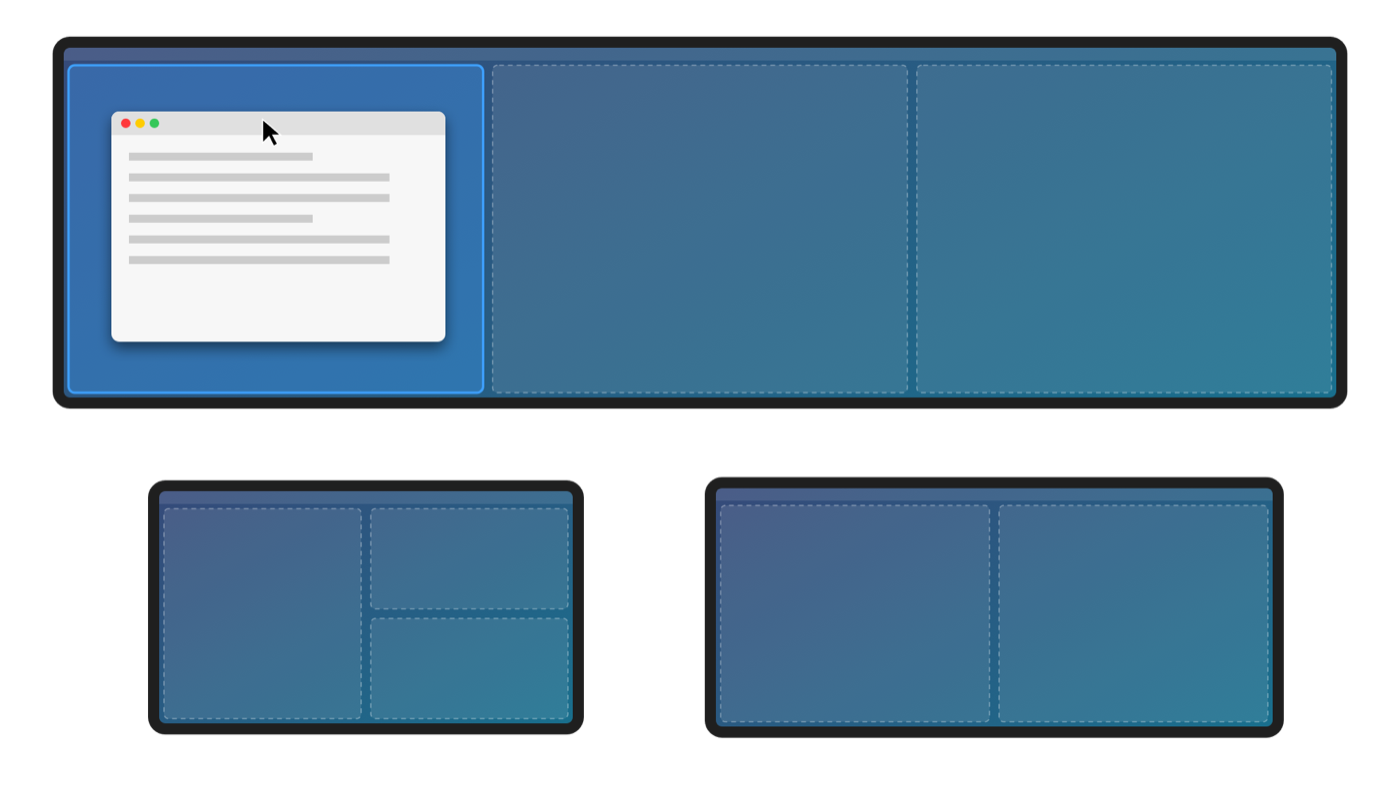
Drag a window to an edge
A preview shows where it lands. Release and it snaps: thirds on a 32:9 display, halves and quarters on the others.
-
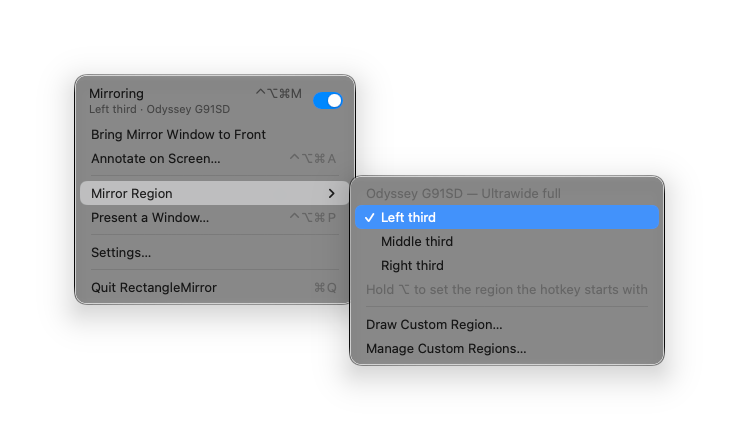
Turn on Mirroring
From the menu bar or with ⌃⌥⌘M. Choose a third, a half, the full screen, or draw your own region and save it by name.
-
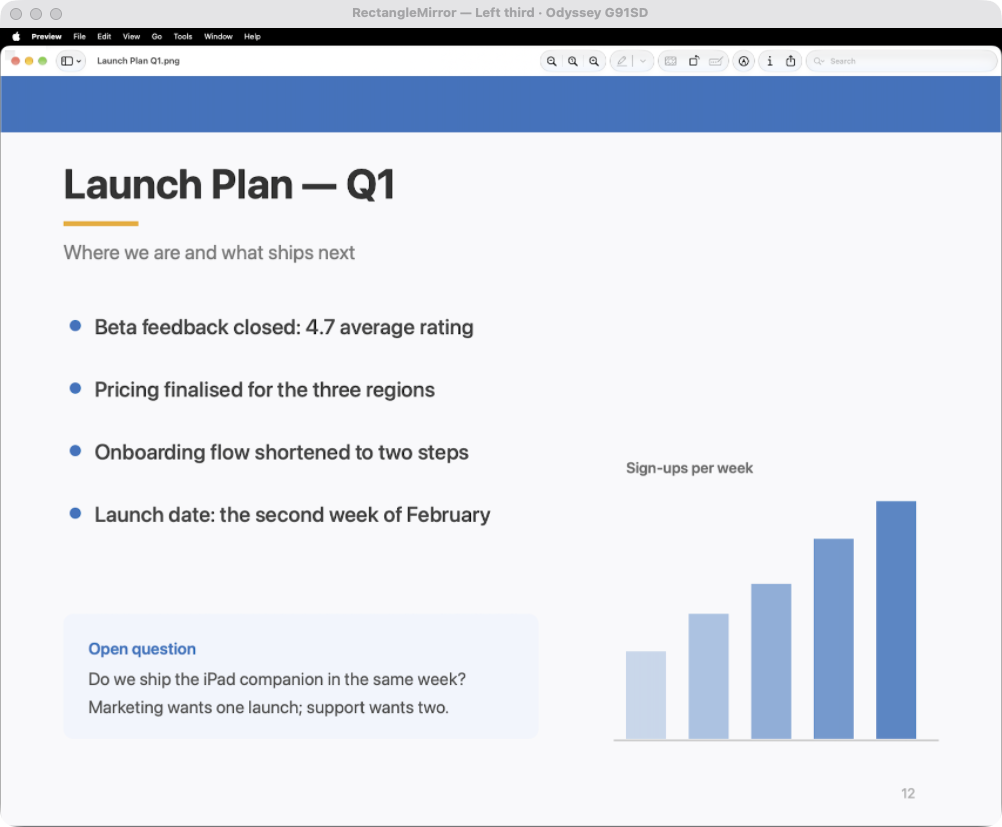
Share the RectangleMirror window
In Zoom, Teams, Meet, Webex or Slack choose window sharing and pick RectangleMirror. The window stays hidden on your side, out of your way.
Presenting tools that work the same in every meeting app.
Zoom, Teams and Meet each hide their drawing tools somewhere different, when they have them. These live on your shared region, so you learn them once.
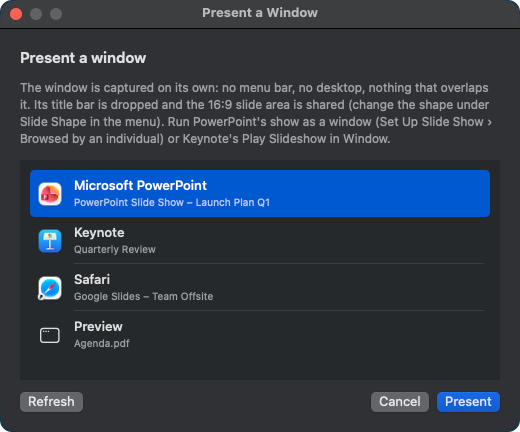
Present one window, framed 16:9
Pick a PowerPoint, Keynote or browser window and RectangleMirror shares just the slide: no menu bar, no desktop, nothing that overlaps it. The share follows the window when it moves and ends when it closes.
- Shapes for 16:9, 16:10 and 4:3, or the whole window
- Dark bars around a slide are trimmed for you
Draw on what you share
Pen, highlighter, text and eraser sit in a small palette. Circle the number, underline the date, type the next step. Marks on a region clear when you stop; the palette is never part of the share.
- Eight colours, five sizes, undo and wipe
- ⌃⌥⌘A opens and closes it


A whiteboard one click away
Switch the share to a blank board, sketch the plan, switch back to the slide. The meeting never sees a stop and restart, and the board keeps what you drew for the next time.
- Same pen, colours and sizes as on a region
- The board is kept until you wipe it
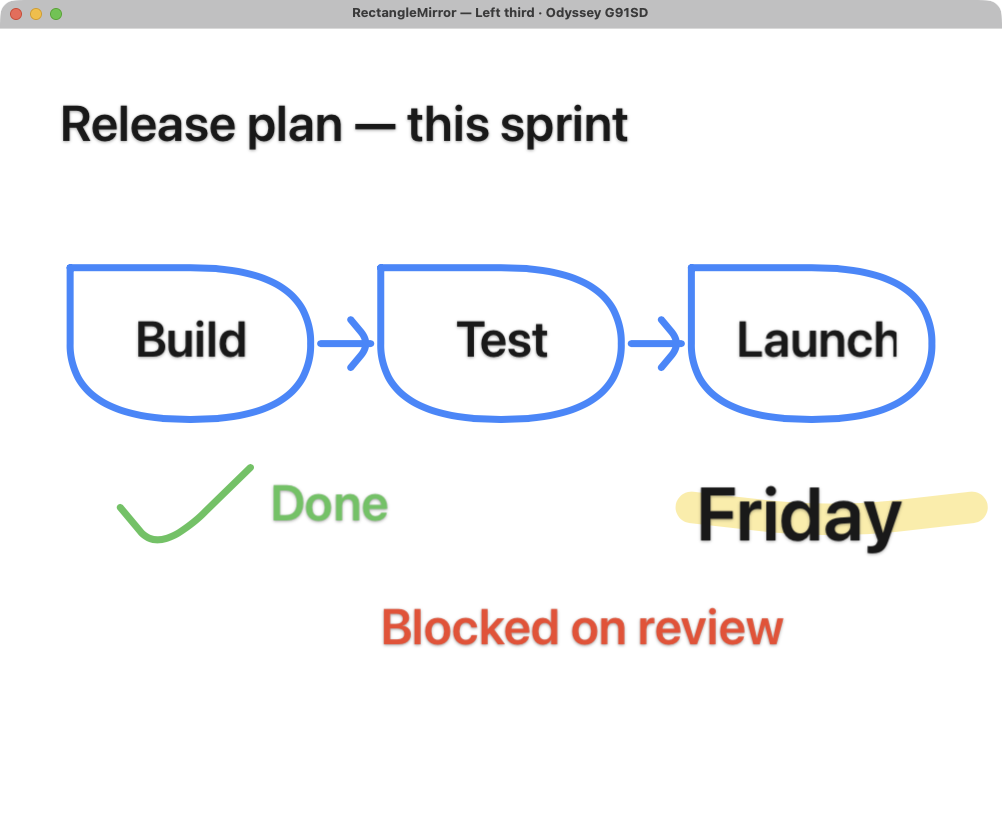
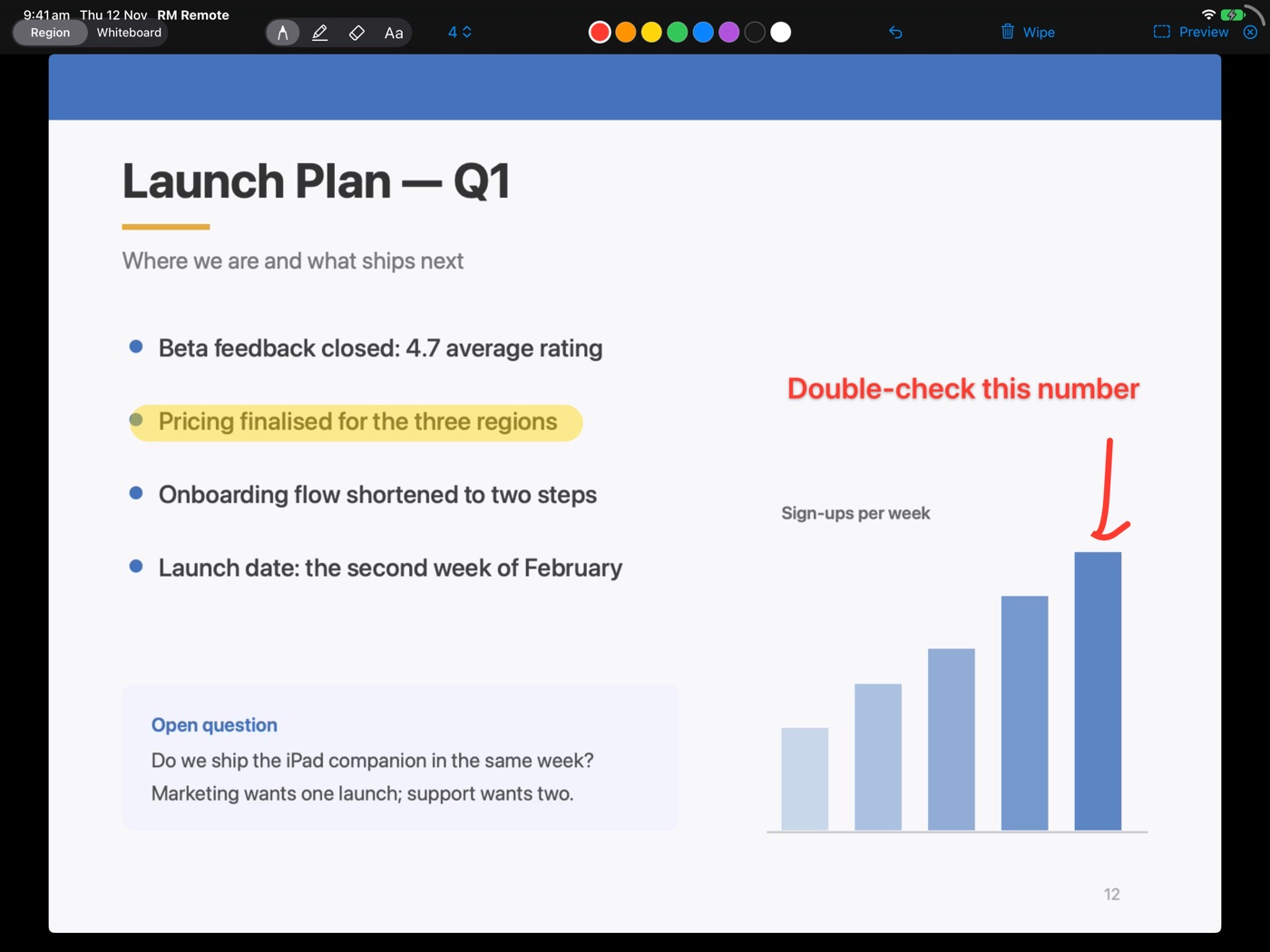
Your iPad becomes the pen.
RectangleMirror Remote is a free iPad app. It shows what your Mac is sharing, live, and everything you draw with Apple Pencil lands on the shared window. Change region or stop mirroring from the couch.
- Pairs like a remote: the Mac asks first, then shows a one-time code
- Talks to your Mac over local Wi-Fi only. No account, no cloud
- Included in the Pro plan and in the free trial
Layouts that fit the display you plugged in.
Snapping needs no shortcuts. Each monitor and resolution gets a profile, known ultrawides are recognised, and you can build your own.
32:9 ultrawide
Left, middle and right thirds, with half-height corners. One screen works like three.
21:9 wide
Halves, maximise and quarters, with left and right half as mirror regions.
Standard
Halves, maximise and quarters, and the full screen as a mirror region.
Made for people who present from a big screen.
Developers
Code, terminal and docs in one readable frame, while the IDE sprawls over the rest of the display.
Sales and demos
Move between product, slides and a browser without re-sharing. Notes and chat stay off the call.
Trainers and teachers
Teach across several apps, mark up as you go, and step to the whiteboard for the hard part.
Consultants
Show a dashboard clearly and keep the client folder, mail and calendar on the part nobody sees.
Try it before you download it.
Click through the real thing: pick a region, see the window your meeting gets, mark it up.
Private, and at home on a Mac.
Nothing leaves your Mac
No account, no analytics, no ads. The only network traffic is to your own iPad on your own Wi-Fi. Privacy policy
Only the region is shared
Mail, chat and the rest of the desktop stay out of the meeting, and the app's own windows are never captured.
Lives in the menu bar
One switch starts and stops mirroring. Starts at login if you like and remembers every monitor and resolution.
Standard macOS permissions
Accessibility to move windows, Screen Recording to mirror. It asks when it needs them and says why.
Free for 14 days. Then the price of a coffee a year.
Everything is unlocked during the trial, iPad companion included. Subscriptions are billed by Apple and you can cancel any time.
Standard
$9.99 a year
or $0.99 a month
- Snapping with display profiles
- Region mirroring and saved regions
- Present a Window
- Annotations and whiteboard
Pro
$19.99 a year
or $1.99 a month
- Everything in Standard
- Live view of your share on the iPad
- Draw with Apple Pencil, control from the couch
Questions, answered.
Does it work with Zoom, Microsoft Teams and Google Meet?
Yes. It works with any app that can share a single window, which also covers Webex, Slack and Discord. Choose window sharing and pick the window named RectangleMirror.
Do I need an ultrawide monitor?
No. On standard and wide displays you get halves and quarters for snapping, and you can mirror a half, the full screen or any region you draw. Ultrawides get the most out of it.
I started mirroring but I can't see a window. Is it working?
Yes. The mirror window is parked out of sight so it never covers your work, while meeting apps still list and stream it. Choose Show Mirror Window in the menu to look at it, or change the placement in Settings.
Can the meeting see the rest of my desktop?
No. Only the region you picked is in the mirror window. Whatever you keep outside it stays private, and RectangleMirror's own palette and settings are never captured.
How does the free trial work?
Every feature is unlocked for 14 days. After that, snapping and mirroring pause until you subscribe; your settings are kept. Cancelling during the trial costs nothing.
What does Pro add?
The iPad companion. RectangleMirror Remote is a free download, and it needs a Mac with the Pro plan or the free trial.
Which shortcuts are there?
⌃⌥⌘M switches mirroring, ⌃⌥⌘, and ⌃⌥⌘. step through the regions of every connected display, ⌃⌥⌘P presents a window and ⌃⌥⌘A opens the drawing tools. All of them can be changed.
Why does it ask for Accessibility and Screen Recording?
Accessibility lets it move the window you dropped at a screen edge. Screen Recording lets it show a region of your screen in its mirror window. Nothing is recorded or uploaded.
Guides for the app you meet in.
- Share part of your screen on a MacThe general method, in any meeting app that can share a window.
- Screen sharing from an ultrawide monitorKeep a 49-inch display readable by sharing one third of it.
- Share a portion of your screen in Microsoft TeamsPresent a region of your Mac as a window in a Teams meeting.
- Share a portion of your screen in ZoomShare a region as a window, with the same steps you use in every other app.
Make your next screen share the readable one.
Free for 14 days. macOS 14 or later, Apple silicon and Intel.
